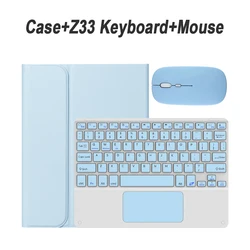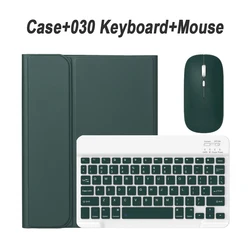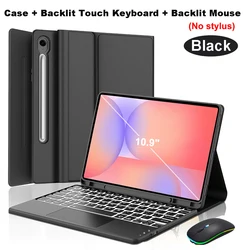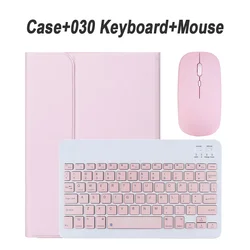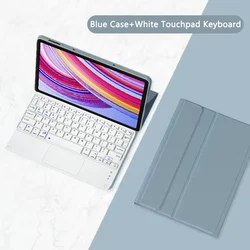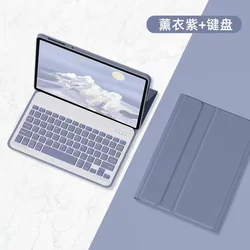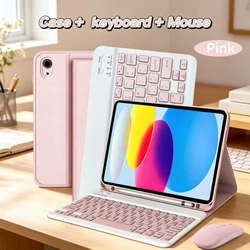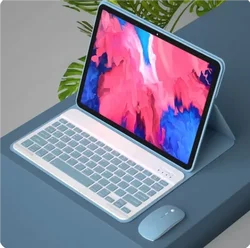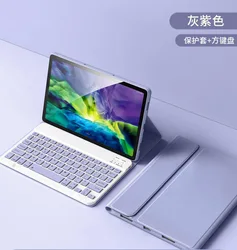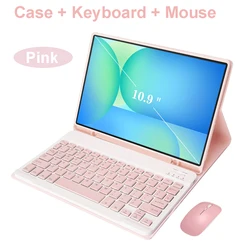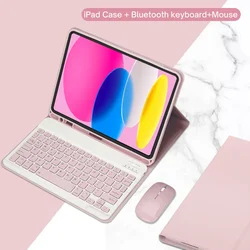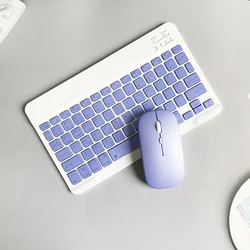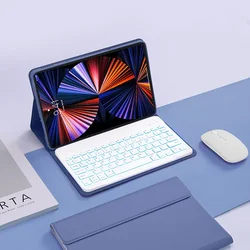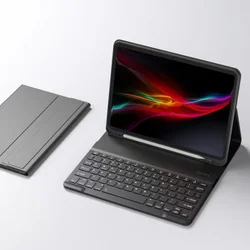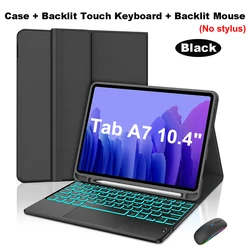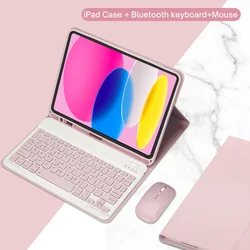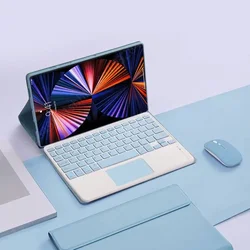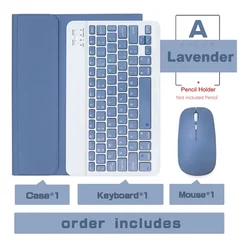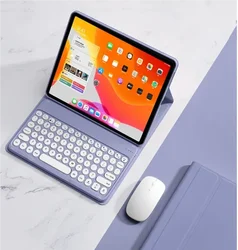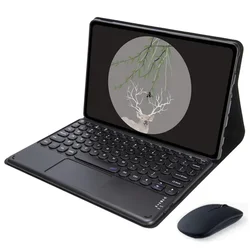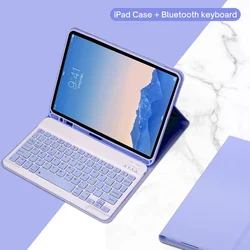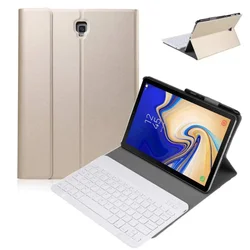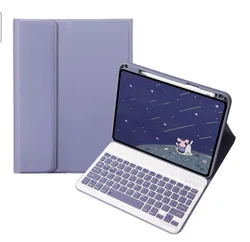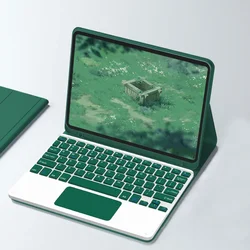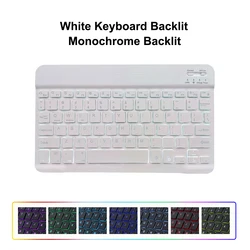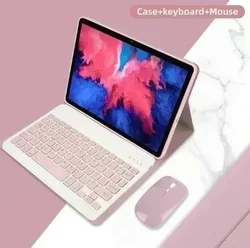
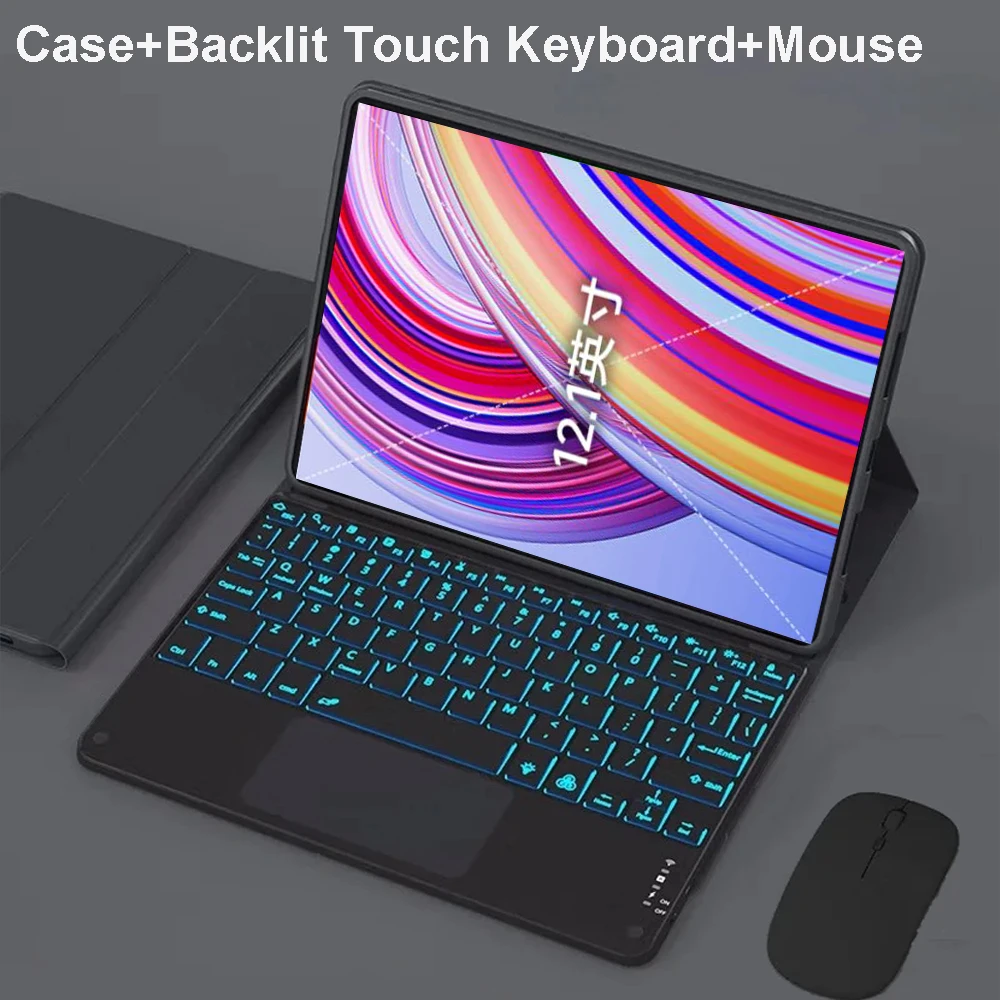

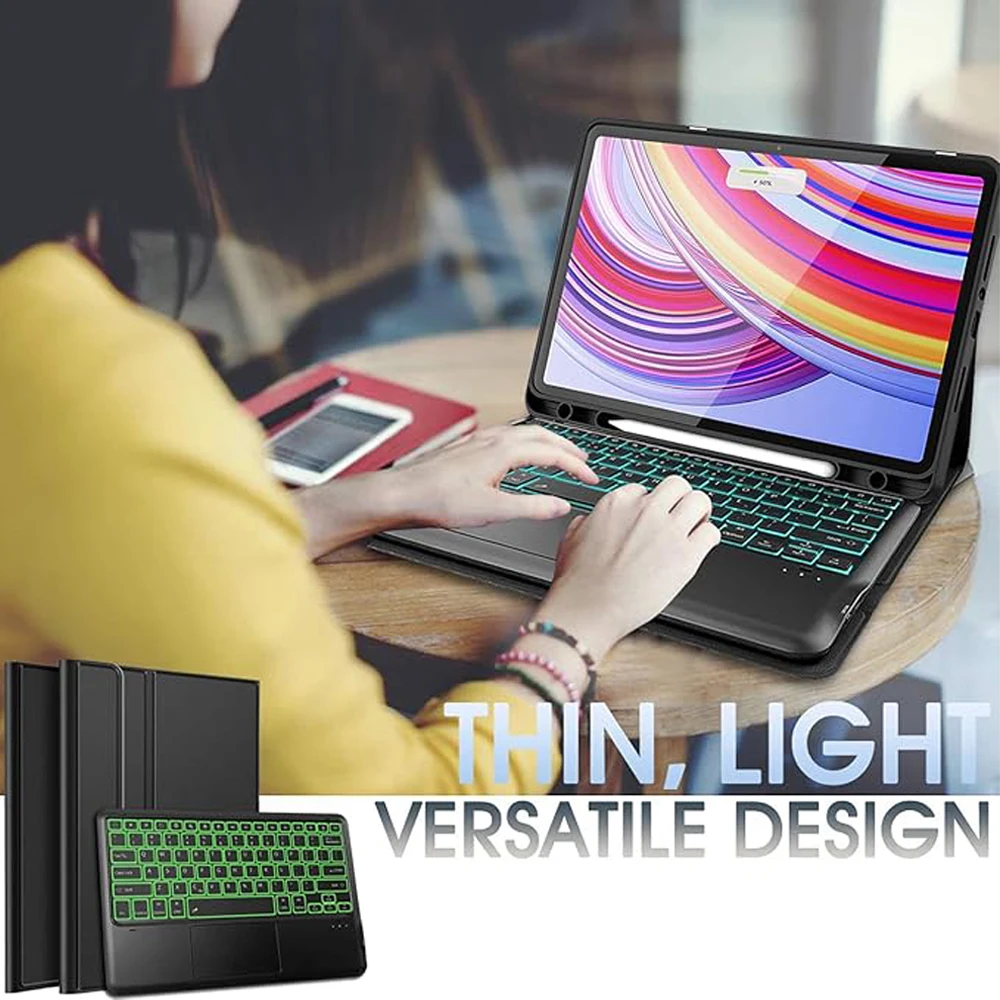
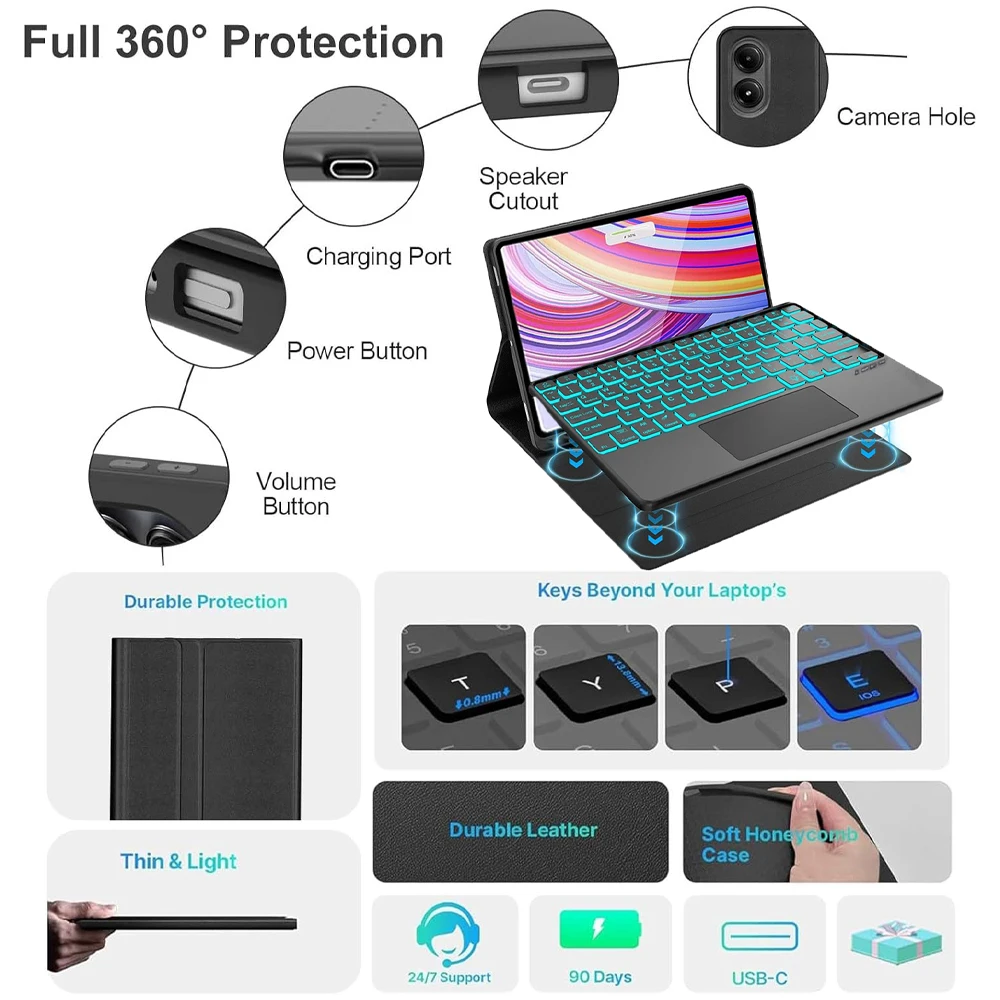
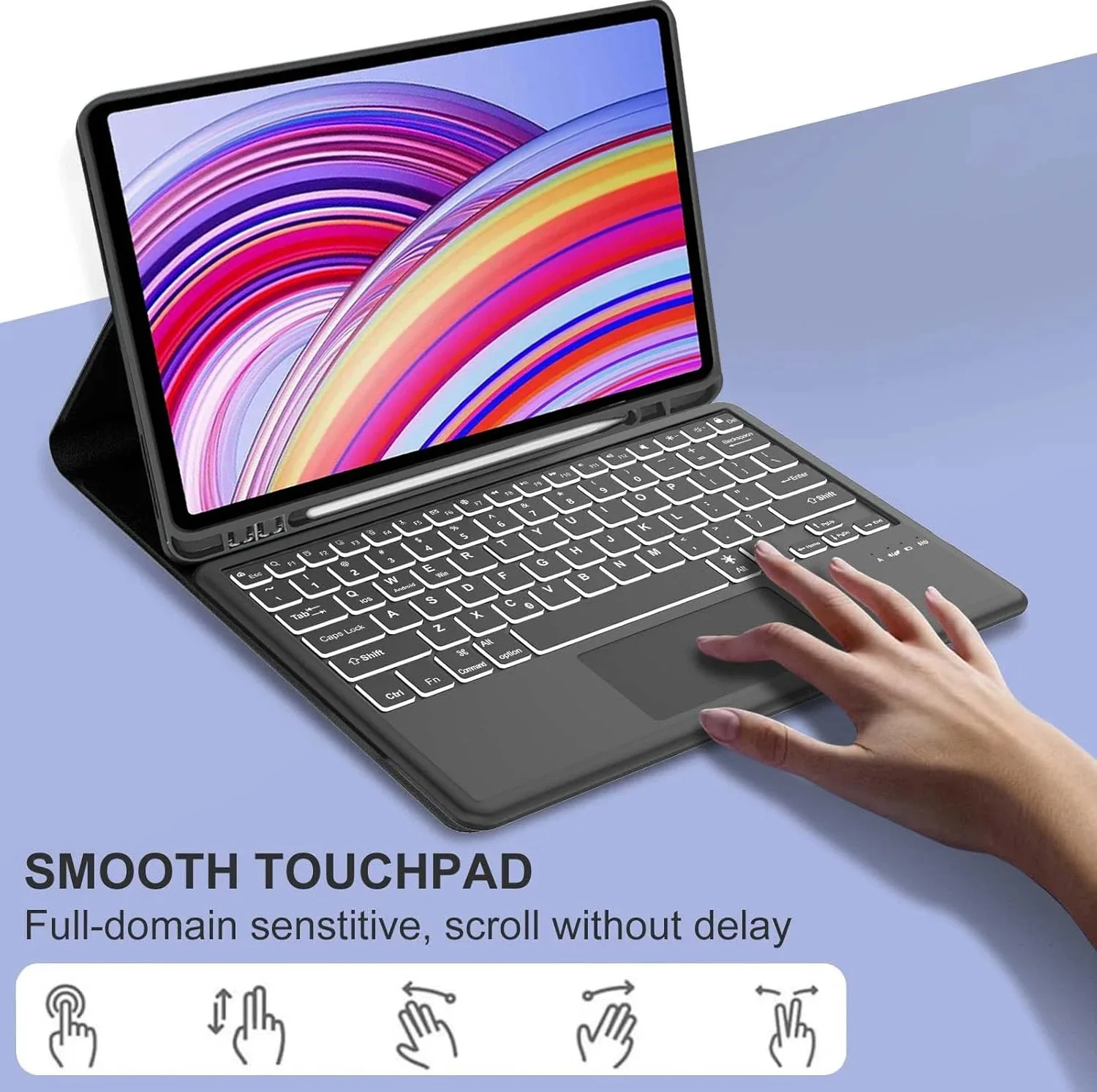
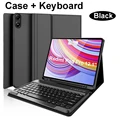
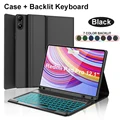
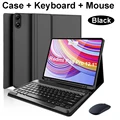
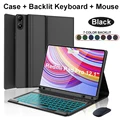
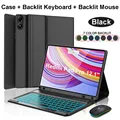
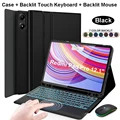
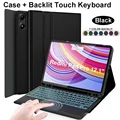
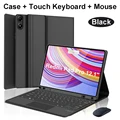
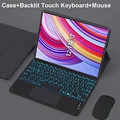
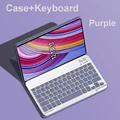
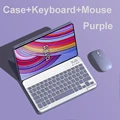
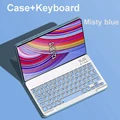

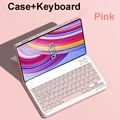
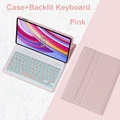

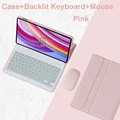
🔴 Xiaomi Redmi Pad Pro 12.1 Inch Case, Keyboard Cover for Redmi Pad Pro 12.1 Inch 2024
🔴 Compatibility:
Designed specifically for the Redmi Pad Pro 12.1 inch Tablet. Please confirm your device model before purchasing.
🔧 Keyboard Options:
- English Keyboard: Features only English letters on the keyboard.
- Multilingual Version Keyboard: Features both English letters and additional language characters.
📦 Package Note:
The package does not include the digital tablet and stylus. Product colors may vary, please refer to the actual product for accurate representation.
🛋️ Typing Experience:
Enjoy a comfortable typing experience similar to a laptop, with simple chocolate keycaps providing a good rebound effect for smooth typing.
🧰 Detachable Keyboard:
The keyboard can be detached and used independently, adding versatility to your setup.
💎 Shockproof Protection:
With bubble corner design, the case offers full protection against incidental bumps.
🧩 Dual Functionality:
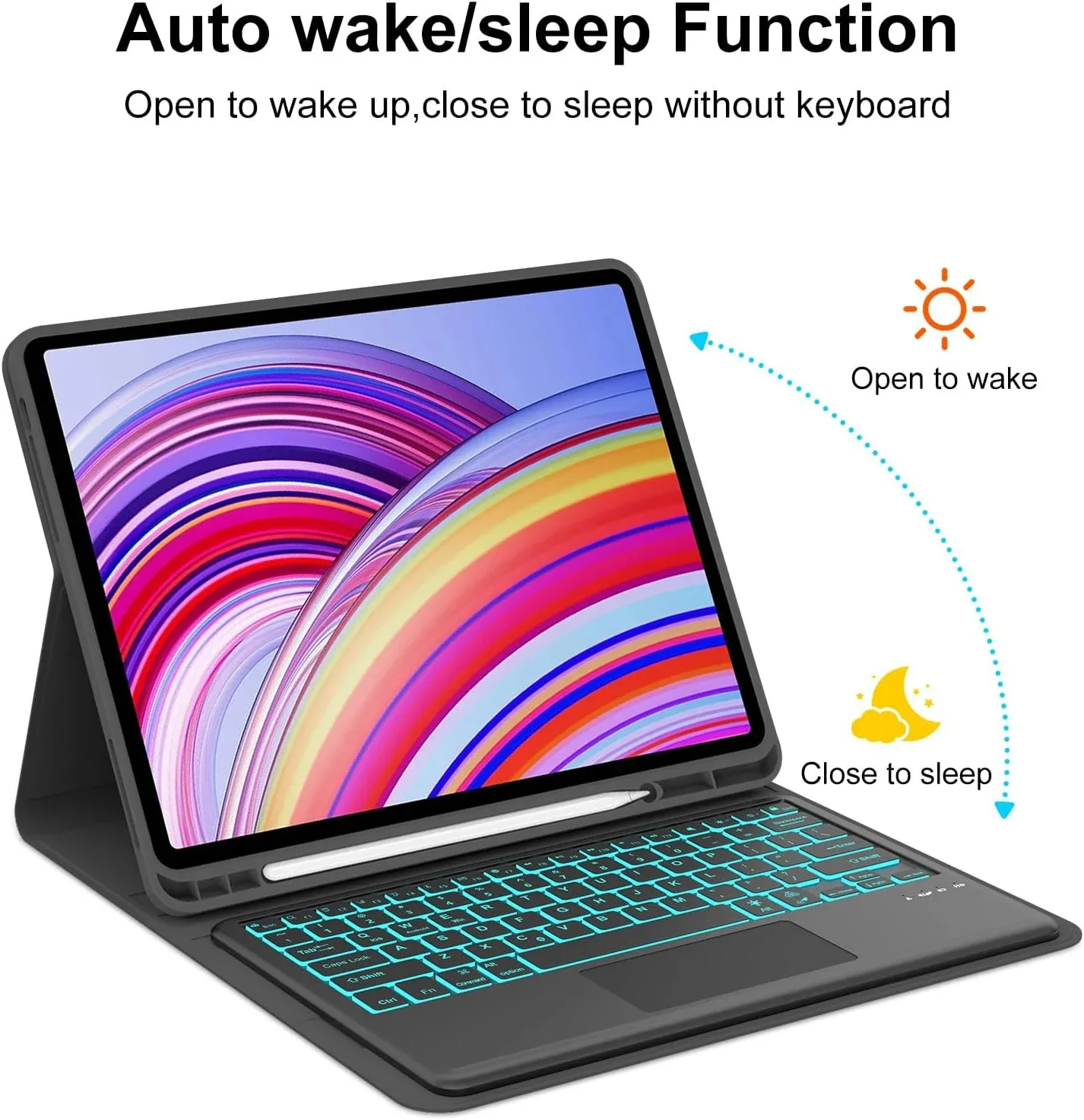
The product doubles as both a Magic Keyboard and a tablet case. Closed, it’s a protective case; open, it transforms into a Magic Keyboard.
🪶 Portability:
Ultra-thin design for easy carrying, with a magnetic buckle offering full protection.
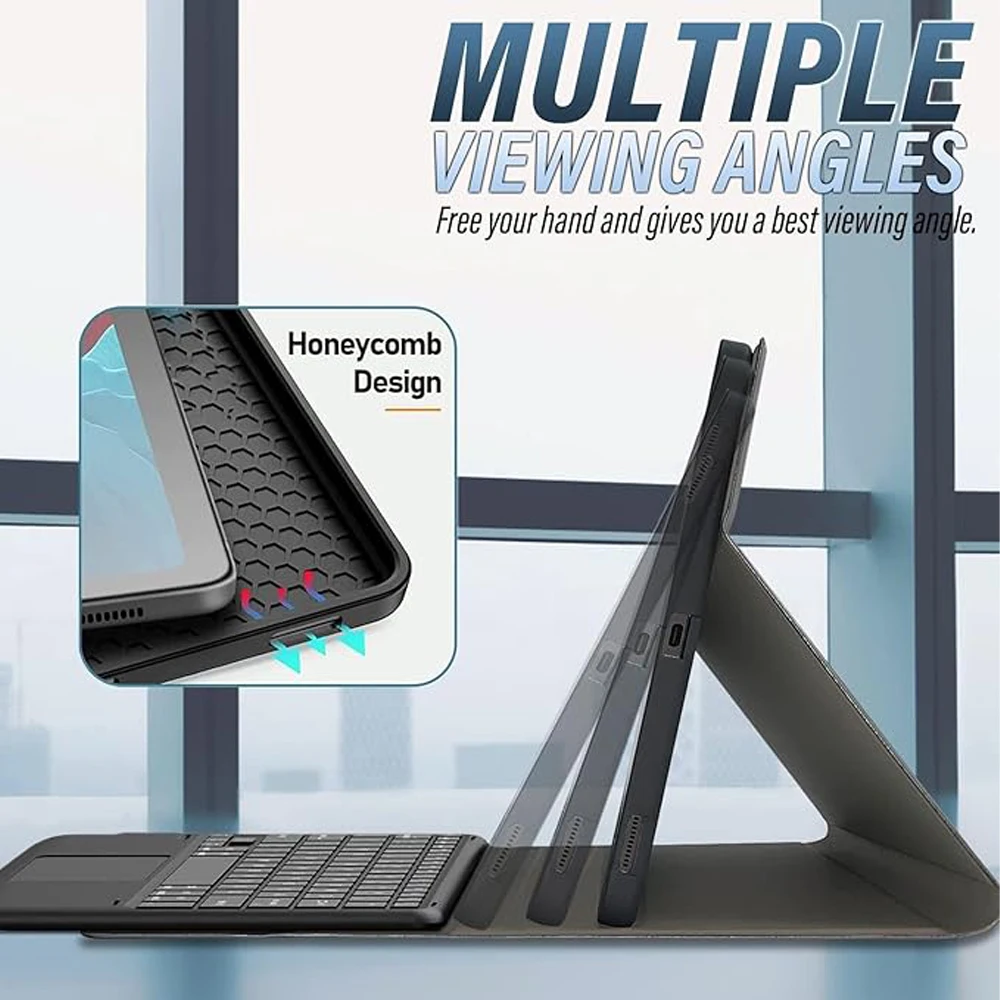
Adjustable Angles:
Allows for angle-free adjustment for optimal viewing and working comfort.
👑 Elegant Design:
Available in various styles and colors, ensuring an exquisite appearance to suit different tastes.
🔵 Bluetooth Connectivity:
Seamlessly connect the delay-free keyboard to any Bluetooth device, transforming your tablet into a notebook.
Instructions for Connecting Keyboard & Mouse:
1. Connect the mouse first, then the keyboard.
2. Mouse: Switch to "Bluetooth" icon, find "Mouse" in the device Bluetooth list.
3. Normal Keyboard: Switch to "ON", press "Connect", find "Keyboard" in the Bluetooth list.
4. Touchpad Keyboard: Turn on keyboard, press Fn+C, find "Keyboard" in the Bluetooth list.
FAQ:
🔘 Q: What should I pay attention to when connecting the mouse for the first time?
A: Press the left button, right button, and scroll wheel simultaneously for about 3-5 seconds.
🔵 Q: Is the scroll direction of the mouse USB connector and Bluetooth connection the same?
A: No, they differ. USB connection scrolls in the same direction as a computer mouse; Bluetooth connection is the opposite.
Q: How to switch between different systems?
A: Use Fn+Q=Android, Fn+W=Windows, Fn+E=IOS. Ensure to switch the system before connecting the tablet.
🔵 Q: The Bluetooth keyboard letters are messy?
A: Check the following:
a. Ensure the keyboard language set on the device is English.
b. Disconnect the keyboard Bluetooth, click Ignore the connected device, reopen the Bluetooth keyboard, select the system, e.g., Fn+E for IOS.
c. Reset the keyboard by pressing L S Z together.
🧰 Q: How to configure the input method for different language keyboards?
A: For example, on a Samsung tablet: Go to "Settings--System--Language & input--Add New Keyboard". For other systems, set them in accordance with respective settings prompts.
Q: How to change the mouse scroll wheel sliding direction on the device?
A: After connecting the mouse, go to "General" -> "Trackpad & Mouse" -> disable "Natural Scrolling".
If this item arrives after the delivery date given at checkout, you will be emailed a C$10.00 credit voucher to use on your next order